Widget Overview
VWire provides 30 widget types organized into four categories. Each widget binds to a device + virtual pin and either displays data from the device or sends commands back to it.
Widget Gallery
Note: Widget previews below are illustrative mockups. The actual widget appearance in your dashboard may vary slightly based on your configured values, colors, and theme.
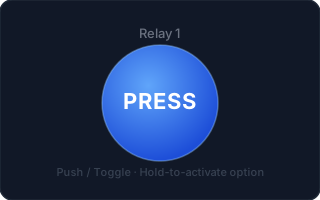
Button
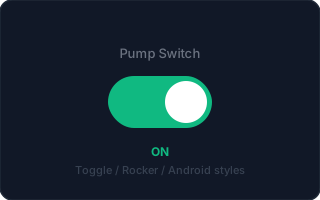
Switch
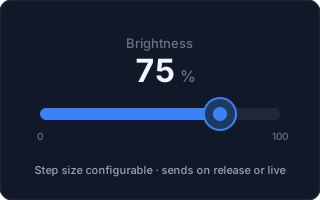
Slider
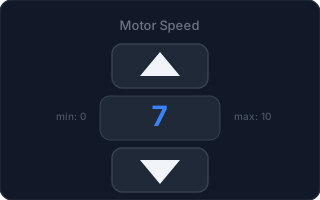
Step Control
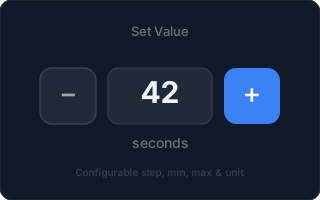
Number Input
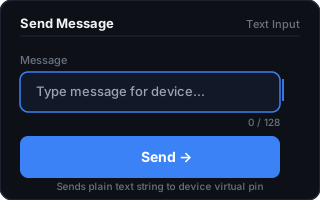
Text Input
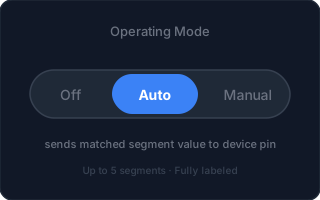
Segmented Control
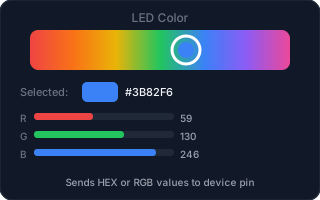
Color Picker
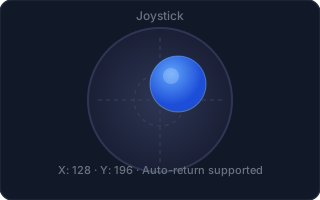
Joystick
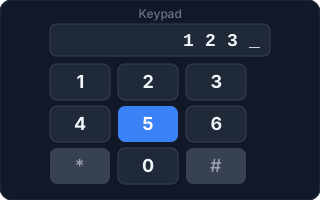
Keypad
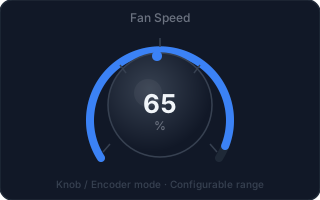
Rotary Knob
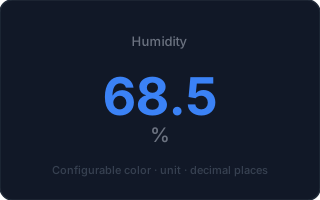
Value Display
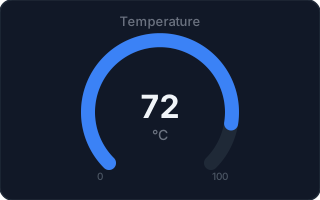
Gauge
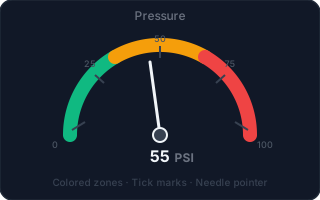
Analog Gauge
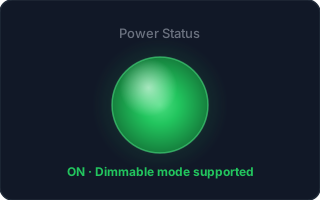
LED
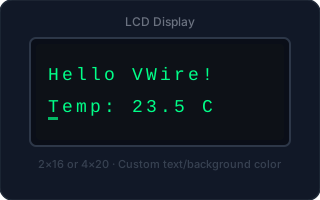
LCD
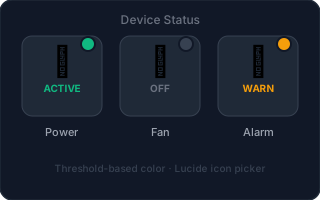
Icon Status
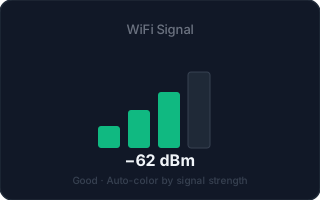
Signal Strength
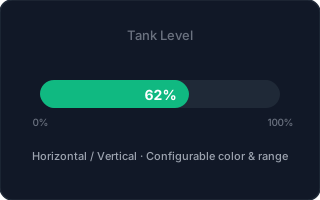
Progress Bar
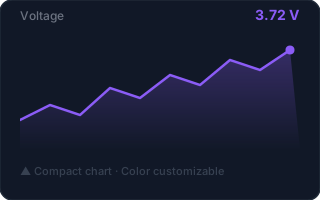
Sparkline
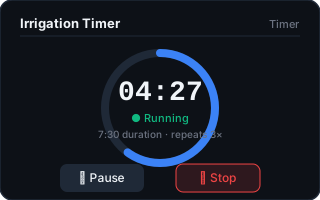
Timer
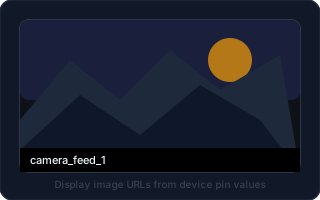
Image
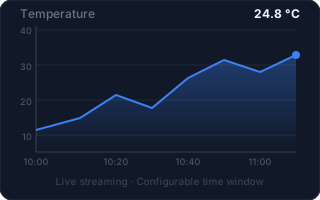
Graph
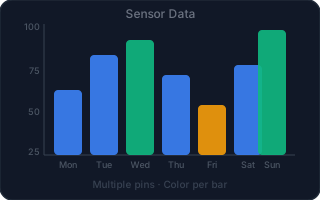
Bar Chart
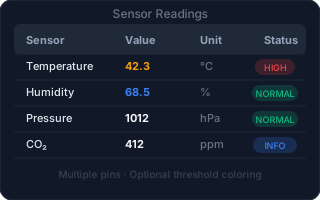
Table
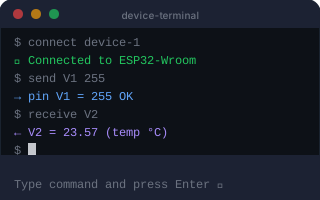
Terminal
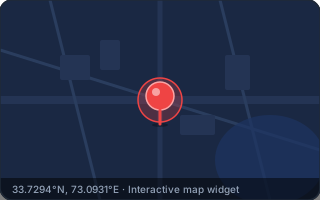
Map
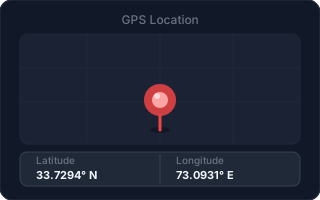
Location
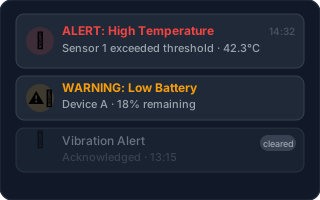
Alert
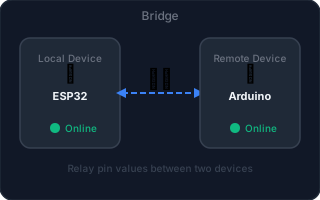
Bridge
Control Widgets
Send values from the dashboard to your device.
| Widget | Default Size | Description |
|---|---|---|
| Button | 2×2 | Momentary push or latching toggle |
| Switch | 2×2 | On / Off toggle switch |
| Slider | 3×1 | Continuous range control |
| Step Control | 2×2 | Increment / decrement by a fixed step |
| Number Input | 2×2 | Free numeric entry within min / max bounds |
| Text Input | 3×2 | Send a text string to a pin |
| Segmented Control | 3×2 | Pick one of N labeled values |
| Color Picker | 2×2 | Send RGB color to device |
| Joystick | 2×2 | Dual-axis XY position sender |
| Keypad | 2×3 | Secure numeric entry with lockout |
| Rotary Knob | 2×2 | Rotary dial (bounded range) or infinite encoder |
Display Widgets
Read and visualize values from your device.
| Widget | Default Size | Description |
|---|---|---|
| Value Display | 2×2 | Large numeric / text readout |
| Gauge | 2×2 | Circular progress gauge |
| Analog Gauge | 2×2 | Needle-style dial with color zones |
| LED | 1×1 | Binary indicator light |
| LCD | 3×2 | Simulated character LCD screen |
| Icon Status | 2×2 | Map values to icons + colors |
| Signal Strength | 2×2 | Wi-Fi / RSSI bar visualization |
| Progress Bar | 3×1 | Horizontal / vertical fill bar |
| Sparkline | 2×2 | Compact recent-value mini-chart |
| Timer | 2×2 | Countdown or count-up display |
| Image | 3×3 | Embed a live image / MJPEG stream |
Chart & Data Widgets
Show historical or streaming data.
| Widget | Default Size | Description |
|---|---|---|
| Graph | 4×3 | Line/area chart with historical data |
| Bar Chart | 4×3 | Bar chart of discrete values |
| Table | 4×3 | Scrollable data table with timestamps |
| Terminal | 3×3 | Log viewer / serial-style console |
Special Widgets
Advanced logic and integration.
| Widget | Default Size | Description |
|---|---|---|
| Map | 3×3 | Live GPS position on a map |
| Location | 3×3 | Collect GPS from mobile browser |
| Alert | 3×2 | Threshold-based in-dashboard alert |
| Bridge | 4×2 | Route a pin value to another device/pin |
How to add a widget
- Open a project and click + Add Widget (top bar or empty canvas area).
- Search or browse to the widget type.
- Configure the Device, Pin, and type-specific options.
- Click Save — the widget appears immediately on the canvas.
- Drag to reposition; drag the resize handle (bottom-right corner) to resize.